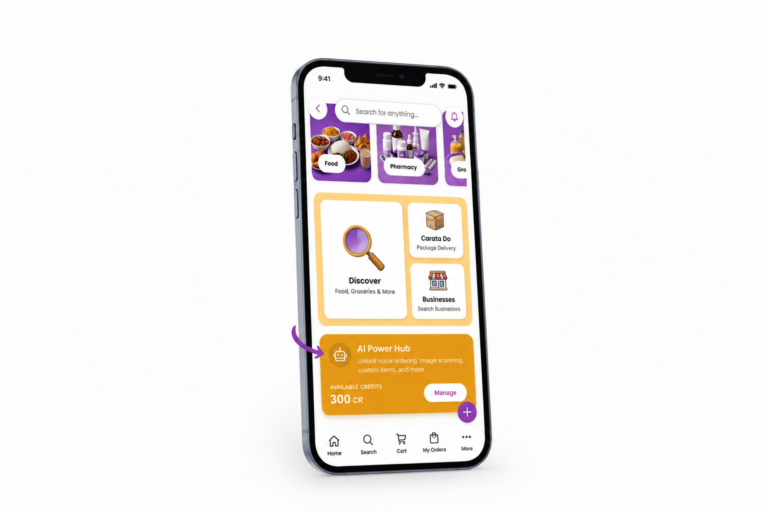
Add Products Faster with AI in Carata 4
Purpose
This guide explains how to quickly add multiple products to your inventory using Carata AI. Instead of entering products one by one, you can upload a photo containing products and their prices, and Carata AI will automatically extract the information for you.
This feature is ideal for businesses with printed menus, handwritten price lists, product catalogs, or clear product photographs.
Prerequisites
Before using this feature, you must have a/an:
- Registered Carata Business account.
- Atleast one registered business https://carata.co/blog/2026/08/13/how-to-register-businesses-on-carata-4/.
- Atleast one business branch https://carata.co/blog/2026/08/14/how-to-add-business-branches-on-carata-4/.
- Access to the Inventory section.
- An image containing the products you want to import.
- Sufficient AI Credits
Note: This feature uses Carata AI and may consume AI Credits. AI Credits are covered in a separate guide.
Accessing AI Product Import
- Open the Carata Business App.
- Select the business you want to manage.
- Navigate to Inventory.
- Select Add Products from Picture (AI). This opens the AI Product Import page.

Step 1: Upload a Product Image
First, The AI Product Import page displays upload options such as Drag and Drop Image and Tap to Select Image.
You can drag an image or tap to choose one from your device. After selecting the image, Carata AI begins analyzing its contents.
Types of Images You Can Upload
Option 1: Product List with Prices (Recommended): Whiteboard, blackboard, printed menu, paper or price list. AI extracts product names, prices and categories.
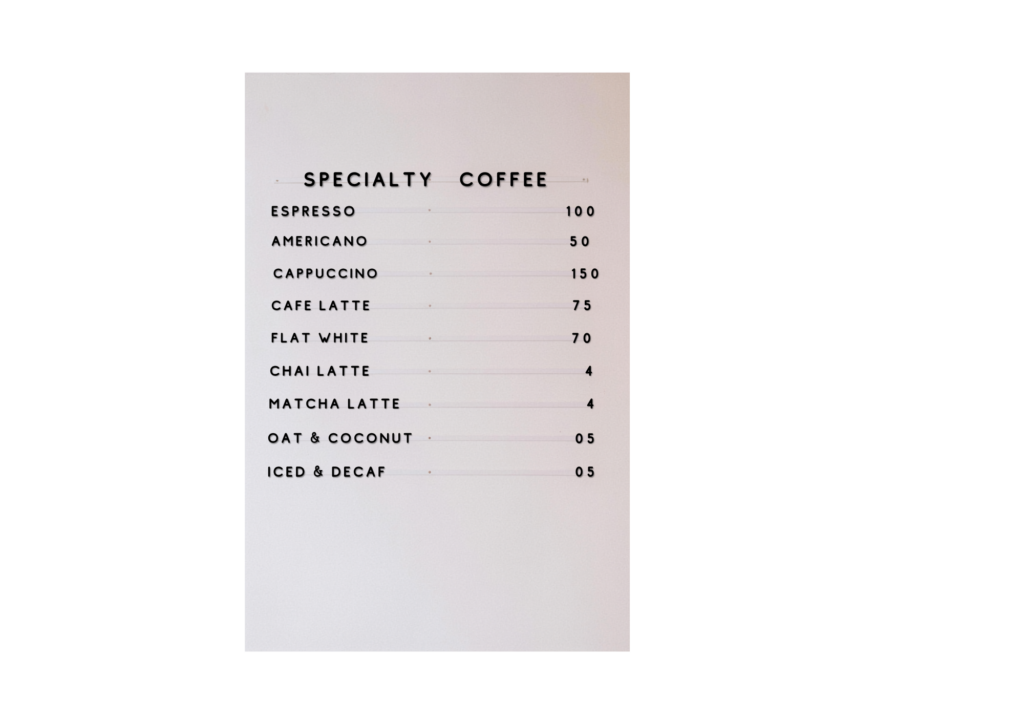
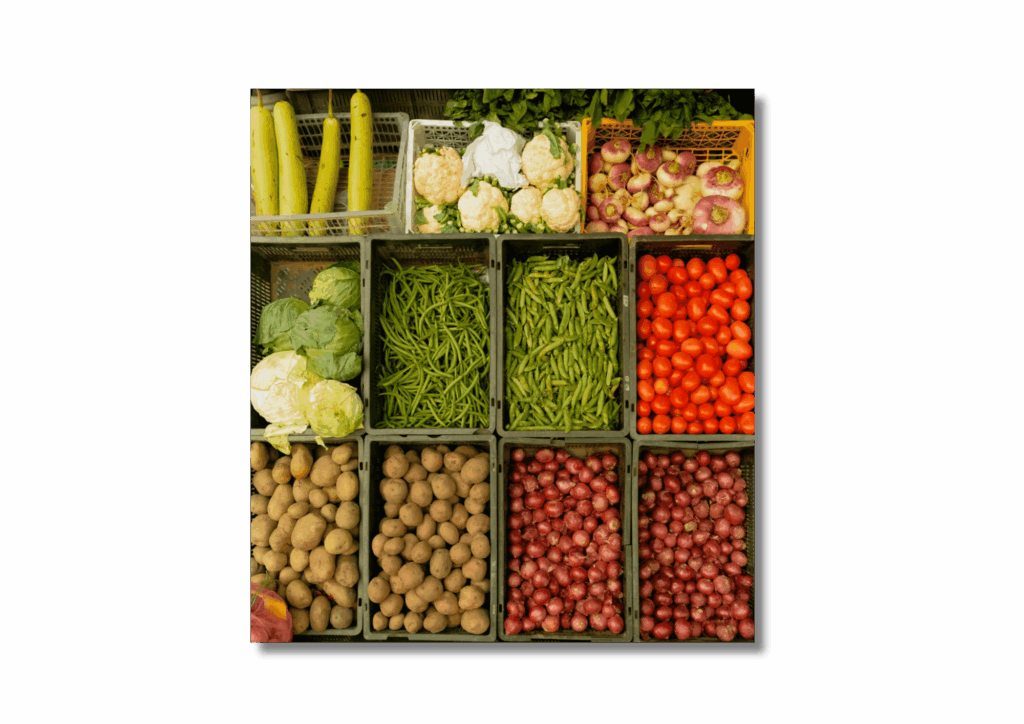
Option 2: Individual Product Photos: Alternatively, AI identifies products, suggests categories and may estimate seasonal prices if no price is visible. Always review estimated prices before publishing.
Step 2: AI Processing
Next, Carata AI scans the uploaded image and may identify product names, prices, categories and descriptions. Multiple products in one image are extracted separately where possible.
Note: You can search in the inventory search bar to see these products and also edit them.
Best Practices for Accurate AI Results
- Use clear, high-quality images.
- Ensure names and prices are readable.
- Avoid blurry or low-light photos.
- Capture the entire list.
- Keep handwriting neat.
- Use one currency.
- Review AI-generated information after saving.
Expected Result
- Carata AI extracts products automatically.
- Names, prices and categories are populated where possible.
- You can review and edit before saving.
- Approved products are added to inventory.
Related Articles
- Adding Products With Text https://carata.co/blog/2026/08/14/how-to-manually-add-product-on-carata-4/
- Managing Inventory
- Understanding AI Credits
- Editing Products
- Managing Product Availability Across Branches